HostGator - A must try Hosting Company

The Importance Of Web Hosting

If you want to build a site, online platform or any other web-hosted business, you cannot go past the importance of web hosting quality. Therefore, knowing how to search and select the best for you is necessary, especially if you need to get professional services that will scale easily, have a reduced downtime and not interfere with your content or activity.

HostGator Introduction


HostGator offer a broad range of services, but they’re undoubtedly best known for their well-priced shared hosting plans. They offer three shared hosting services - Hatchling, Baby and Business - and each one steps up the service options and support provision. In addition, HostGator offerreseller plans, VPS hosting and dedicated servers, as well as an affiliate programme.

HostGator is a private company. The current CEO Brent Oxley formed the company while he was at university in 2002. Now, HostGator host more than 8 million domains for 400,000 customers in over 200 countries. Originally based in Florida, HostGator’s rapid growth lead them to a move to Texas in 2007. They have a base in Houston and an office in Austin, plus an Indian arm which you can find at http://hostgator.in. Additionally, HostGator have a third office in Brazil which manages http://www.hostgator.com.br. They currently employ 200 people but are expecting to double this in the next couple of years.

HostGator Hosting Plans

Hosting Plan
Disk pace
Bandwidth
Price

Linux Hatchling
Unlimited
Unlimited
$6.95/month
Linux Baby
Unlimited
Unlimited
$9.95/month
Linux Business
Unlimited
Unlimited
$14.95/month
Gold Reseller
160GB
1200GB
$74.95/month
Aluminium Reseller
50GB
500GB
$24.95/month
Copper Reseller
80GB
700GB
$34.95/month
Silver Reseller
120GB
1000GB
$49.95/month
Diamond Reseller
200GB
1400GB
$99.95/month
Basic Dedicated
250GB
1500GB
$174.00/month
Standard Dedicater
2x 250GB
1500GB
$219.00/month
Elite Dedicated
2x 500GB
2500GB
$279.00/month
Pro Dedicated
2x 500GB
2500GB
$374.00/month

HostGator Support

HostGator’s support options are pretty comprehensive for a low-cost shared hosting provider. You can access 24/7 live chat support, a FAQ, email support or phone support (within the US, it’s free to call their phone number). It’s not clear where their support staff are based.


Support and billing is provided via a portal where customers can login to upgrade their account, access user forums, check out the knowledge base and watch helpful video tutorials on some of the most common configuration questions they’ll face. This account login is separate from the Cpanel login. In addition, transfer requests are handled smoothly via a quick online form.

HostGator Control Panel

All of HostGator’s Linux plans come with Cpanel 11 as standard, and users are given a variety of themes to choose from. Cpanel provides access to all the features you’ll need, including webmail, one-click backups and DNS settings for Google Apps.

Reseller accounts are also provisioned with Cpanel and WHM. Both Cpanel and WHM are optional on VPS and HostGator’s Linux dedicated server hosting plans. On a Windows dedicated server, Plesk 11.x is included in the price.

On VPS plans, HostGator also provide Virtuozzo, an administration package for the server itself.

All customers get access to a separate billing area to organize

Discount Coupons:


25% off on all Hosting Plans : 
CanvasCoupon
$9.94 off on all Hosting Plans : 
theTechCanvas
Hosting at just 0.001$ for first month : TechCanvas001
[Use these discount coupons to avail discounts]


Read more about web hosting at www.whoishostingthis.com


Highest CPC in Google Adsence

The 20 most expensive keywords categories with the highest search volume (i.e. the most used keywords) and highest costs per click, thereby netting Google the most money, are:
  1. Insurance (example keywords in this category include "buy car insurance online" and "auto insurance price quotes")
  2. Loans (example keywords include "consolidate graduate student loans" and "cheapest homeowner loans")
  3. Mortgage (example keywords include “refinanced second mortgages” and “remortgage with bad credit”)
  4. Attorney (example keywords include “personal injury attorney” and “dui defense attorney”)
  5. Credit (example keywords include “home equity line of credit” and “bad credit home buyer”)
  6. Lawyer ("personal  injury lawyer," "criminal defense lawyer)
  7. Donate ("car donation centers," "donating a used car")
  8. Degree ("criminal justice degrees online," "psychology bachelors degree online")
  9. Hosting ("hosting ms exchange," "managed web hosting solution")
  10. Claim ("personal injury claim," "accident claims no win no fee")
  11. Conference Call ("best conference call service," "conference calls toll free")
  12. Trading ("cheap online trading," "stock trades online")
  13. Software ("crm software programs," "help desk software cheap")
  14. Recovery ("raid server data recovery," "hard drive recovery laptop")
  15. Transfer ("zero apr balance transfer," "credit card balance transfer zero interest")
  16. Gas/Electricity ("business electricity price comparison," "switch gas and electricity suppliers")
  17. Classes ("criminal justice online classes," "online classes business administration")
  18. Rehab ("alcohol rehab centers," "crack rehab centers")
  19. Treatment ("mesothelioma treatment options," "drug treatment centers")
  20. Cord Blood ("cordblood bank," "store umbilical cord blood")
We found that that 97% of Google's revenue comes from advertising on Google sites. In the last four quarters alone (Q3 2010-Q2 2011), Google brought in $32.2 billion in total advertising revenue.

Google CPC: Google's Highest Cost Per Click Keywords

Google AdWords is a dynamic, auction-based marketplace where advertisers bid on keywords to compete for top ad placement. The minimum bid per keyword is 5 cents, but this research shows that in highly competitive categories, Google can make up to $50 per click from PPC keyword bids. Despite a diversified product portfolio, advertising on Google sites accounts for the vast majority of its billions in annual revenue.
The google adword keyword categories with the highest volumes and costs represent businesses with very high lifetime customer value – in other words, these industries can afford to pay a lot to acquire a new customer. These most expensive keywords comprise businesses such as lawsuits, mortgage applications, and server hosting. Some high-volume keyword categories have lower CPCs because advertisers have slimmer margins to expend on PPC advertising. 

The Most Expensive Keywords: Survey Methodology

We compiled data from our own trillion-keyword database and the Google Keyword Tool to determine the top 10,000 most expensive English-language keywords over a 90-day period. This keyword list was then organized into categories by theme, such as "Insurance." The largest keyword categories were determined by weighting the number of keywords within each category, as well as the estimated monthly search volume and average cost per click for each keyword.

Tips For Bidding In A Super-Competitive, Expensive Google Adword Key Word Niche

you or your client are struggling to compete in a high-volume, high-CPC keyword category such as the most expensive keywords identified in this study, the PPC best practices are the same as always, except of course, the stakes are 1000x higher if you’re paying on average $50 per click vs. $0.05 per click. Here are a few tips to consider:
  • Quality Score: High Quality Scores can help lower your average Google CPC. Tools like the Keyword Niche Finder and Keyword Grouper to break up larger keyword lists into smaller, more targeted lists which will enable you to write more targeted ad text and landing pages which should help improve relevancy and Quality Score.
  • Be Specific: Target specific, 3-5 word keywords. Use a keyword tool to generate specific keyword ideas, and use keyword match types to ensure you’re only paying for keywords that are very specific to your business.
  • Use Negative Keywords: Use a negative keyword tool to help figure out what kinds of words you’re likely to be matched against and weed out keywords that aren’t relevant to your business.
  • Be Relevant
  • Landing Page Optimization: The average conversion rate for just about anything on AdWords is around 2%. But we often see landing pages converting at the 20% or even 30% range. The key to landing page optimization is to keep trying out different types of offers and testing how people respond to them.
  • Grade Your AdWords Account For Free: Use the AdWords Grader to get a free, instant audit of your AdWords Account to see how your AdWords account stacks up to the competition.

More AdWords PPC Keyword Bid Info

Visit the "Where's Google Making Its Money?" infographic for the full list of the top 20 most expensive Google CPC keyword categories and to embed the graphic on your own site.
Update (July 22, 2011): Check out the follow-up article to this study: Where's Mesothelioma, What Is Cord Blood & Other FAQs About Our Most Expensive Keywords Study.

Google Nexus 7 Tablet is Best for Gaming

Do you love gaming? If you really love gaming then you are suppose to know already that the better platform to play game is a tablet computer rather than phones. Because of increased screen resolution and better graphics quality, You will glad to know that the Google Nexus 7 is specially designed with Google Play in mind too. It means that if you fire up your Google Nexus 7 you will be instantly able to download TV shows, movies, games ,books, and music from anywhere what you need is that an internet.

Microsoft Touch Mouse for Windows 8 and Windows 7 Reviews


Do you really feel difficulty while using the keyboard to operate a computer? Do you want to use mouse more than a keyboard while using your PC? Don’t worry, there are so many people who feel comfortable to use the mouse for all operations. Well It may be time-consuming, but it gives you a sense of comfort. We know that you have been using touch screen technology in your phones or tablets. Microsoft's new release is the Touch Mouse concept for recently released Windows 8 and the earlier Windows 7 operating systems. Sounds kewll, doesn’t it? Technology is a word that strikes in every mind and keep you guessing about what will come up with next. However, the wonder doing the rounds and being talked about a lot is this technology that is “Touch Mouse”.

How To Build Backlinks?

You must heard about backlinks. Have you? Well don’t worry I tell you what backlinks are and why we need to build backlinks and how back links are built  Its as simple as blogging. It may be time consuming but the result is seriously magical for your site or blog.


TIps to Get Traffic To Your Website

There are number of websites or blogs running. And many bloggers are earning enough to live their life peacefully  And blogging requires lots of patience, consistency and work hard. Many bloggers do not success even after working hard. Do you know why?
Because of niches that are illegal. And topics which are related to piracy. Pirated softwares, Movies, Games, Apps, or Copyrighted data.

Top 5 Blog Topics that Will Make you More Money


Start a blog: You just need to have an attractive writing skills and  a little knowledge about webdesigning. Dont worry, if you dont know anything about blogging, MTW has the solution of beginners also. You can read our basic post to learn for creating a blog.

How To Add JQuery Fade Effect to Blogger blog?


In today's post you will leran how to add jquery fade effect for your images in blogger or any other web sites. I will explain you the very simple step to do so. its very easy and it takes less than few minutes. But I am sure this effect will add a very attractive appearance to your blog or web site.
Now without taking much more time I am giving you the steps.

How To Find Forgotten Email Address of Your Blogger Blog

How To Find Forgotten Email Address of Your Blogger Blog


Most of us have multiple Google Accounts and sometimes we don't remember the email address by which  you used to create your Blogger blog.
If you want to learn, how to create a blog?
then just read our post: create your Blogger blog.

Now we discuss about the existing blogs which are created on the email address which is forgotten.
So this short article will explain you the simple step to get your blogging email.

New Blogger interface introduced Permalink option to create custom URLs

In new Blogger interface there has introduced one more new and very useful feature for SEO of your blog. The new feature is "Custom Permalinks For Blogger Posts". SEO friendly custom URL is very usefull buit-in feature for your blogger posts. The best thing is that there is not character limit(39 characters) further with this custom permalinks in new blogger interface .

You can create your own URL for a any perticular or all posts, Here in this article we will learn how to create your own custom permalink.

Step 1:

You just have to click "permalink"  and select "Custom URL" as shown in the image.


Step2:

and then just enter your own customURL in the field given


If you wrote the post in Oct of 2012, your new URL will look like this:

http://MyTrickWays.com/2012/10/customURL.html

Yo can see the red colored bolded area is the portion of the URL that can be customized.

If the custom permalink which you entered already taken before, Then blogger will attempt to find a free one for you.

In this interface, the characters that are allowed in a custom URL are limited to: A-Z, a-z,  0-1. And the only special characters that are available: underscore, dash, and period.

How To Add Meta Description to Blogger without editing your HTML code

For every blog or website Meta description tags are very important to get optimized  in search engine. The new Blogger interface has an option to use your post and home page description. In today's article we will learn to add a meta description tag to Blogger blog without making any changes in template's HTML coding. But still there is no any option to add  meta keywords to your blog in Blogger Settings. You have to edit your template HTML code. Here we are going to discuss for adding Meta description only.


Meta Descriptions is a HTML attribute that is used to concise explanations of the contents of web pages, are commonly used by search engines on search results page to display preview snippets for a given page.


 How to add Meta description tags in your blogger blog:


The very 1st step is to go to your blog settings as shown in image:


Click on "Edit" of "Meta tags" section.


Now enter the desciption of your blog. and it should be a meaningful meta description.

And Click on "Save" link.


You have successfuly added a meta description to your blogger blog.

Note:
Subscribe us to get updated, and receive all the posts. And keep visiting MyTrickWays


top high paying google adsense alternatives


You always wish to earn online from your website or blog, The best and biggest advertising network is GoOgle adsense as it pay you the value your site deserve, And it is the only platform which makes your blog worthy. Google Adsense is the only online advertising network which is broadly used by countless visitors all across the world. Google Adsense enables you to monetize your blog or website with most worthy and desirable advertisements.

But generally Google does not accept small publishers in the advertising network. As there  are number of applications that are increasing in violation of rules and regulations. If you have a blog that is containing illegal content that dont apply for adsense as you might face detention in form of getting permanently banned from Adsense. So it would be better not to apply for Google Adsense until you design and establish a high profile website/blog.

That is why Small Publishers are looking for similar kind of advertising networks (an alternative) for their blogs/website. So in this article I will share the best Google Adsense alternatives. So all the small publishers can get approved and earn what they deserve.


Infolink  is the best alternative advertising network used instead of google adsense as It provides Intext advertising for all types of text based blogs or website. If you are getting a good traffic on your site and you have rich content in your blog or website then you can make a decent revenue with Infolinks. If you are intrested in this adsense alternative and you want to use Infolinks then you don't need to have a high profile designed website or blog . you just need to apply for a new Infolinks Publisher account and within 24 hours your account will be approved.


Get Started – Infolinks:
When you get approved from Infolinks, you can now integrate its ad with your site by simple method of integration. Once you have successfully integrated Infolinks with your blog or website, the infolinks bots will crawl your blog and according to your content the infolink would display all the matched keywords ads. you can check the statust of your earning at any time just by signing in to your Infolinks Publishers account.

Withdraw  – Infolinks:

Payment option: PayPal, BankWire Transfer
Minimum Payout:  50 dollars for PayPal  AND BankWire transfer minimum payout rate is 400 dollars


how to customize popular posts widget blogger?

Now you can change the look of your Popular Posts Widget of your blogger blog to make it more stylish and attractive for your readers. You should use a Popular Posts Widget in the sidebar of your blog as there are so many advantages. And this widgets enables your visitors to read and learn those popular articles that are most trending on a blog or website. As Built-in Popular posts widget in blogger is not that much attractive and attention-grabbing in terms of designing and displaying of popular posts. So if you are interested and you wish to change your Popular Posts widget into a stylish widget then, you have to work on CSS Style sheets.Don't worry I will explain you the simple steps to do this. Most bloggers ask to change their popular posts widget so I am sharing the customization of this built-in widget. In this article, we will learn how to customize Popular Posts Widget to make it more attractive and stylish.


 How to add Popular Post Widgets in blogger?


If you have not used Popular Posts Widget before, So have a look to add this by default widget.Otherwise leave this step.
Before customize Popular Posts Widget you have to add your default Widget that is buit-in widget of your blogger template. So explaining you the simple steps to add this widget.


  1. Go to Blogger account >> Select your blog >> Layout
  2. Click on "Add Gadget" in the column you wish to use this widget
  3. Select Popular Widget


Now you have installed a buit-in widget and next step is to customize this buit-in widget and make it more attractive for your readers.
We have successfully integrated a Popular Post widget on your blog

In built-in widget you can display up to 10 popular articles, but what I would recommend you, is to select only 7 as shown in this image

Now check the “Snippet” (optional) and “Image Thumbnail” because we are going to display images along the popular or trendy article, this will be more stylish and gonna make it more spice to your site.


 Customize the Popular Post Widget


Now you have already added a popular post widget and you wish to make it more spicy and attractive, then just follow these simple steps.


  1. go to Blogger >> Template 
  2. Now Select Edit HTML >> and then Proceed.

Now click on show widgets within your Template and  Search for "  ]]></b:skin> " you can use (CTRL+F ) to search this and just above it paste the following CSS Code shown below.

/*--- theTechCanvas --- */ .popular-posts ul{padding-left:0px;} .popular-posts ul li {background: #FFF url(https://blogger.googleusercontent.com/img/b/R29vZ2xl/AVvXsEhUyaJ4_h4RBCBCdzH9ev0crh-pYhmXynxFmiB87EI-HQ29LPmQgoVku3fHA_qSJPeplZ4ndnfydmBsKNibT640sdj4AQbP5I35jvJwzomYVxq-HflbPLulgYiGfS0xHoT6cCu5BFdswz0/s1600/1.gif) no-repeat scroll 5px 10px; list-style-type: none; margin:0 0 5px 0px; padding:5px 5px 5px 20px !important; border: 1px solid #ddd; border-radius:10px; -moz-border-radius:10px; -webkit-border-radius:10px; } .popular-posts ul li:hover { border:1px solid #6BB5FF; } .popular-posts ul li a:hover { text-decoration:none; } .popular-posts .item-thumbnail img { webkit-border-radius: 100px; -moz-border-radius: 100px; border-radius: 100px; -webkit-box-shadow: 0 1px 3px rgba(0, 0, 0, .4); -moz-box-shadow: 0 1px 3px rgba(0, 0, 0, .4); box-shadow: 0 1px 3px rgba(0, 0, 0, .4); }

Save the template and You have successfully customized your Popular Post Widget. Now see the changes in your blogger. Its more stylish and your trendy posts are appearing very attractive.

This will surely be liked by your visitors and definitely it will increase the number of your readers .
Enjoy your blogging with this customization and subscribe us to get our posts through your email.

How to check pagerank? Google Toolbar


Bloggers mostly ask one of the most common questions that how they find the page rank of their blogs/website according to Google. So this article will explain you about the tools which shows you the pagerank of your blog or website.

Thes Page Rank tool help us to determine the page rank of your blog and website and it also help us to find which sites are more popular and can be appeared on google search engine on the top position of search result.

Google Page Rank is calculated by google formula and its a scale from 1 to 10 according to the quality of your blog. The higher the page rank more popular is the site.

There are many websites available that provide services to check your blog/website pagerank. One of them is the PageRank Checker. You can also find this site on the search engines by keyword pagerank checker. To get a more accurate result to check your  pagerank, then you have another option that is Google Toolbar . This tool is (google pagerank) may be placed on the internet browser you are using i.e Google chrome, Internet Explorer,mozilla firefox, Opera etc. I use mozilla firefox because this browsers is easy to use and have number of tools.
To find your pagerank in mozilla firefox, download the Google Toolbar and select what features would you look at your browser.

And you have to restart your browser after installing the Google Toolbar.

To learn about pagerank and important values ​​of google pagerank of blogs/website pages as they appear, you stay hovering over the green diagram shown in the below image will show the pagerank of website pages that you have currently opend.


You are now using Google toolbar so you don't have to worry about the accuracy as its a Google Toolbar. And especially it was published rumors on the internet about pagerank forgery.

So Check your blog pagerank accurately!

content is king (Google loves fresh and unique content)


As we all know that google is the most popular search engine in the world. Every one search everything in google. So if you have a blog or website and you want to get a good search engine ranking then you need to have fresh and unique content on your blog/website because google does not prefer quantity but quality.
So write well and unique so that your page rank as well as your search engine ranking can be better.


 Use internal linking :


When you write your post link the keywords which are related to your already published posts. It increases your internal linking which is also the part of Search Engine Optimization (SEO). And it will increase your pagerank and quality of your content.

For example MyTrickWays can be used like MyTrickWays


 Upload Images in your own blog or website :


Most of the time we just use the links of images which are uploaded in different server. But don't do this! It shows the poor quality of your post content. And it also increases the loading time of your page. As the browser has to collect the data(images and Content) from the different servers and it takes more time than taken by same server (Ex- Blogger.com). So upload all the images of your posts on your own server to minimize the time of loading your page by the browser and to make your content better and get a good page rank as well as good search engine ranking.


 Unique and fresh content gives you ultimate traffic :


If you have good quality content then no one can stop to give you traffic. So the content is the main thing one should keep in mind who loves blogging.
Nothing matters more than quality content of your post.
So you must keep in mind three things while writing your posts. And these are :
Quality content, Quality content  and Only Quality of content!

How To Upload Template In Blogger? 3 Simple steps!


 How To Upload Template In Blogger?


You have a blog! And you are thinking that is it possible to design a blog like a very attractive website?
Then Blogger has an option for customization of your blogs by installing templates.
You can choose any templates from hundreds of templates available in many websites.


 Where to download blogger template ?


There are many websites from where you can download blogger templates such as:
Btemplates.com, TemplatesDoctor.com etc.
Now this article will explain you the steps to install and upload your template which you have downloaded from one of the above or any website.


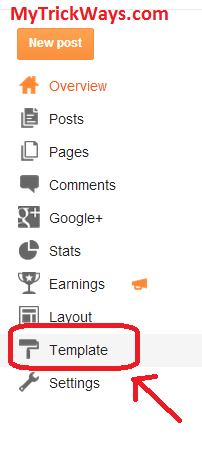
 Step 1: Go to Template as shown in image :


 Step 2: Click on "Backup/restore" :


 Step 3: Choose File to upload your downloaded template : 


Before uploading your new template you should download your existing template so that you can again upload that template in future without any customization.

So these were the simple steps to upload and install any template you like. I hope you have learnt the way of uploading templates in blogger and make your blog attractive just like a big website.Video tutorials will also be published later.
Enjoy your blogging and keep visiting MyTrickWays.com